帮助与常见问题/导入指南

导出你的 Notion 工作区
把 Notion 工作区导出为 HTML 或 Markdown & CSV 压缩包,PrivacyNotes 会去掉 Notion 的 32 个字符的 ID,把子页面重建为文件夹,保留分栏和颜色,并把页面链接转换为笔记链接。
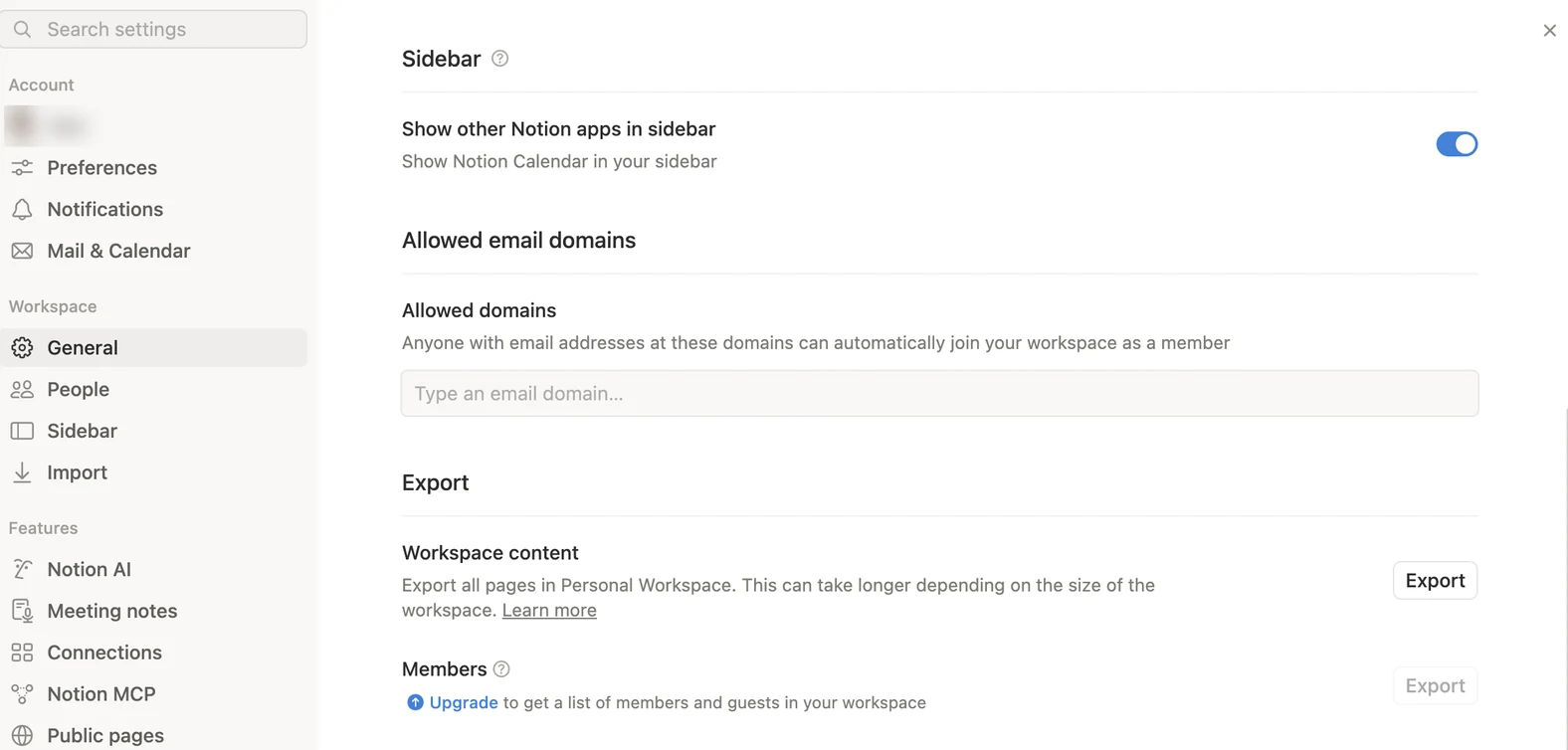
导出整个工作区
Notion 会在后台生成较大的工作区导出文件,并通过邮件把下载链接发给你。把这个 .zip 原样拖进 PrivacyNotes,不需要解压,压缩包里嵌套的分卷 zip 会自动处理。
- 在网页或桌面端打开 Notion,从工作区菜单中打开 Settings。
- 在 Workspace 下打开 General,滚动到 Export。
- 点击 Workspace content 旁的 Export。
- 如果只想导出单个页面及其子页面,请打开该页面的三点菜单,选择 More > Export。
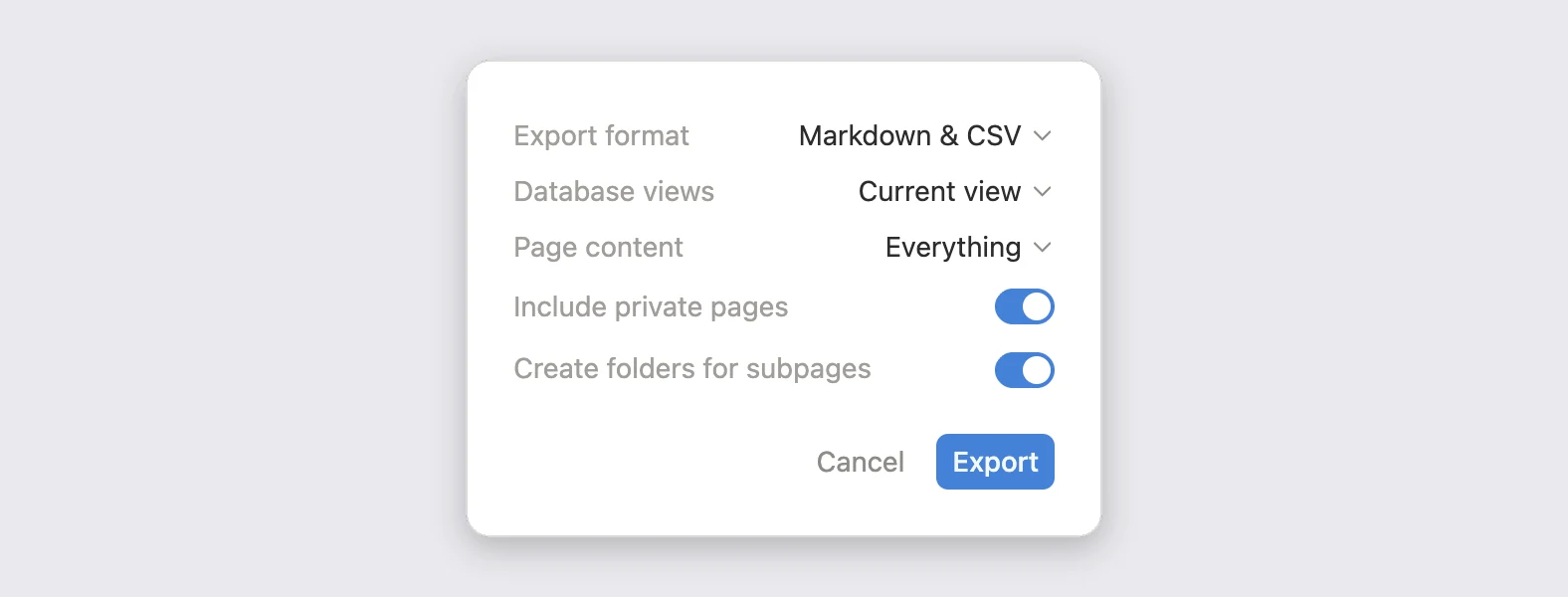
选择 HTML(推荐)或 Markdown & CSV,并打开文件夹选项
Notion 导入器无法读取 PDF 导出文件。请选择“HTML”,让分栏、颜色、结构、链接和格式都完整带过来;想要纯 Markdown 则选择“Markdown & CSV”。
- 把 Export format 设为“HTML”,以保留并排分栏、分栏宽度、文字颜色和高亮。如果你没有用到分栏或颜色,“Markdown & CSV”也可以。
- 把 Page content 设为“Everything”,这样图片、PDF 和附件文件都会包含在内。
- 打开“Include private pages”(单页面导出则是“Include subpages”)和“Create folders for subpages”。
- 点击 Export,保存 .zip 文件。
会带过来什么
Notion 会在每个导出的文件名和内部链接后面追加一个 32 个字符的 ID。PrivacyNotes 会从所有标题和文件夹名中去掉这些 ID,移除最外层的“Private & Shared”文件夹,并把嵌套的子页面重建为文件夹。
标题、列表、嵌套的任务列表、表格、带语言的代码块、数学公式、下划线和引用都会原样带过来。使用 HTML 导出时,并排分栏(2 到 5 栏,含比例)、文字颜色和高亮也会一并带过来。Notion 的标注会转换为 PrivacyNotes 的标注,导出页面之间的链接和提及会变成笔记链接,上传的图片、PDF 和文件会导入到你的存储空间。
数据库的行页面会作为笔记导入,放在以数据库命名的文件夹里,Tags 属性会被添加为标签。数据库的 CSV 表格文件会被跳过,并计入摘要。Notion 自己的 Markdown 导出会把分栏拍平,也不包含文字颜色、高亮和回收站中的页面。
导入到 PrivacyNotes
- 打开 PrivacyNotes,进入设置迁移。
- 选择 Notion 作为来源。
- 拖入你刚导出的文件,或点击浏览选择。
- 查看预览中显示将要导入的内容,然后开始导入。
还是没解决?问问你的 AI 智能体。
几秒钟就能得到答案,不用等回复。你的助手会一次读完全部 192 条解答和每份导入指南,因此能把它们结合起来,针对你的问题继续追问,并用你自己的话讲解。这一切我们都看不到,因为我们没有运行聊天机器人。
- 复制提示词。
- 把它粘贴到 ChatGPT、Claude、Gemini 或任何其他 AI 助手。
- 用你自己的语言提问。
- 保留这个对话。
显示 AI 提示词
Answer my questions about PrivacyNotes using only its help center, its changelog and its security documentation.

Start here: https://privacynotes.app/llms-index.txt
It lists every question with the page that answers it. Fetch the one or two that match mine.
If you can only make one request, fetch https://privacynotes.app/llms-full.txt instead.
If you cannot fetch a .txt or .md file, read https://privacynotes.app/cn/help, https://privacynotes.app/changelog and https://github.com/LifetimeLabsHQ/PrivacyNotes.app instead.

For what changed, or where something moved, fetch https://privacynotes.app/changelog.md.

For how the encryption works, what the server can read, or how to check any of it yourself, fetch https://privacynotes.app/docs/index.md and follow it to one of the documents it lists. That index is a router: cite the document, never the index.

Rules:
- Use only those pages. If they do not answer something, say so instead of guessing.
- Never invent a feature, a menu path, a price, or a limit.
- End your reply with the "Source:" URL from the page you used, exactly as written.
- Answer in the same language as my question.
- Never ask me for my recovery phrase, my PIN, or the contents of a note.

If no question follows, ask me what I would like to know.

My first question:
切勿把你的恢复助记词、PIN 码或笔记粘贴给 AI。